
Linktree Alternative: How to Create a Branded Link in Bio Page in Showit
April 28, 2026
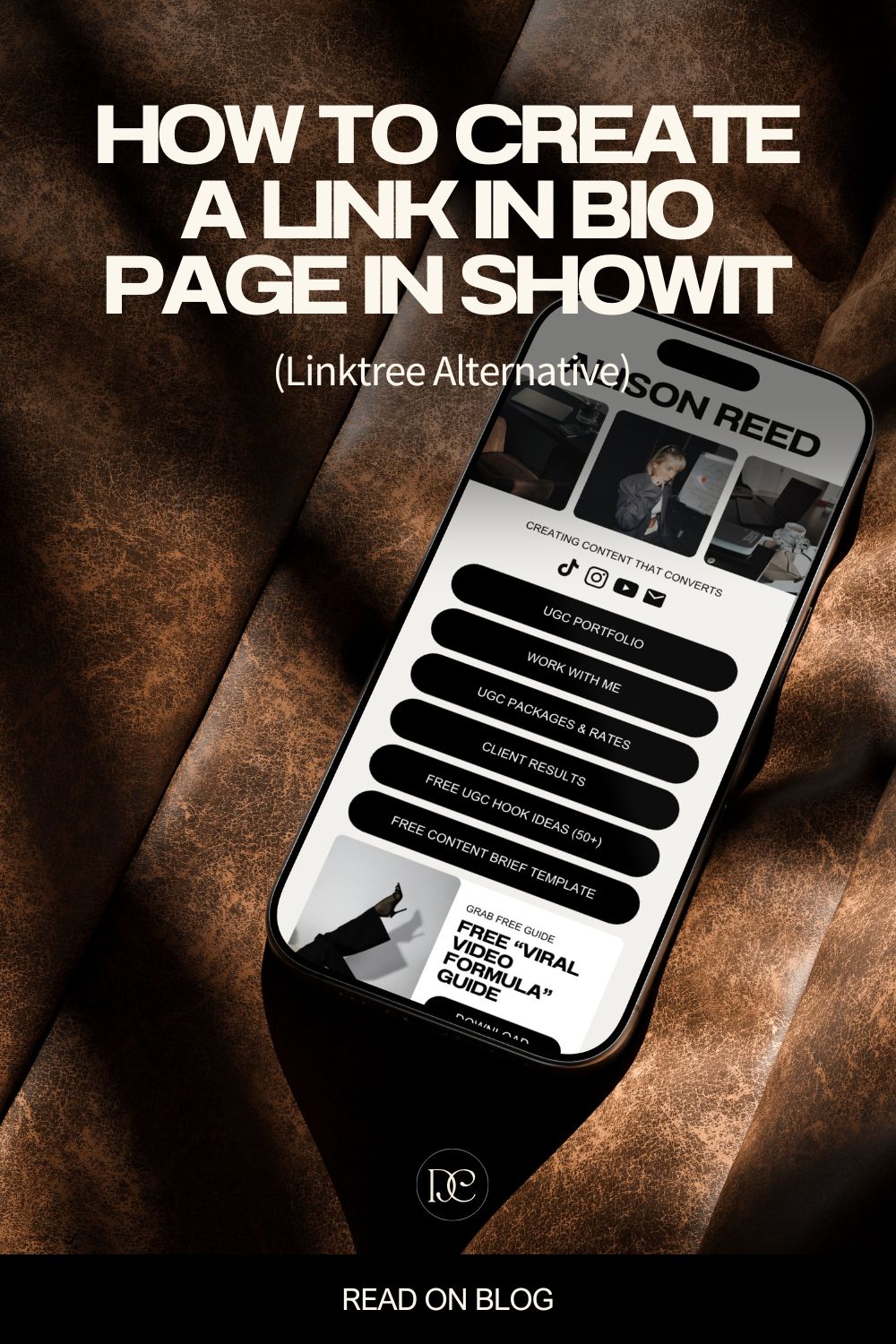
If you want to create a link in bio page in Showit, you’re making a smart move. Linktree is fine — but it’s generic, it’s limited, and it doesn’t look like you. A Showit link in bio page, on the other hand, is fully branded, completely customizable, and lives right inside your own website. In this tutorial, I’ll show you exactly how to build one, step by step.
And the best part? If you already have a Showit website, this is going to be really quick to set up.
Why Use Showit for Your Link in Bio Page Instead of Linktree?
Showit is a drag-and-drop website builder that gives you complete creative freedom — no rigid templates, no branded watermarks, no cookie-cutter layouts. Here’s why it beats Linktree for your link in bio:
- Fully customizable — match your exact fonts, brand colors, and aesthetic.
- Mobile-first design — since your link in bio is primarily viewed on phones, Showit lets you design the mobile version first.
- Drag and drop simplicity — if you can use Canva, you can use Showit.
- Seamless brand integration — if you already have a Showit website, your fonts, colors, and button styles are already in place.
- No limitations — add buttons, images, videos, freebie sections, email opt-ins, mockups, and more.
Don’t have a Showit account yet? You can try Showit free here — it’s the platform I use for my own website and client projects.
How to Create a Link in Bio Page in Showit — Step by Step
Step 1: Create a New Blank Page in Showit
Inside your Showit dashboard, create a new blank page and name it something simple like “Instagram.” This becomes your dedicated Showit link in bio page.
If you already have a Showit website, your design settings — fonts, brand colors, and button styles — should already be configured. You can skip straight to building the layout.
Step 2: Set Up Your Design Settings
Before designing, make sure your brand settings are dialed in. Go to Design Settings and configure:
- Buttons — choose your border size, style, spacing, and font. Showit now has a built-in button element, which means you no longer need to manually create a rectangle and layer text on top — total game changer.
- Fonts — pick fonts that match your brand. Google Fonts like Montserrat are free and easy to add. If you want to use a custom font, check out my tutorial on how to add a custom font in Showit — no coding needed.
- Brand Colors — add your key colors. For a clean, minimal look, think white, black, and one or two accent tones like beige or warm gray.
- Text Case — uppercase headings and button text give a polished, intentional feel.
Step 3: Design for Mobile First
Since your Showit link in bio page is primarily accessed from a phone, design the mobile canvas first. Showit lets you toggle between desktop and mobile views, and you can preview the smallest screen size (around 600–700px) using the mobile overlay.
Once the mobile version looks great, make quick adjustments to the desktop layout — it matters less here, but some visitors may still land on it from a laptop.
Step 4: Add Your Profile Image and Heading
At the top of your page, add a profile photo or brand image — just drag and drop it onto the canvas. Set rounded corners (try 10–30 for a soft modern look, or 100 for a full circle crop). Then add a heading with your name or tagline and adjust the font size to fit neatly.
Step 5: Add Social Media Icons
Showit includes built-in icons for the most popular social platforms — Instagram, TikTok, YouTube, Pinterest, email, and more. Add your icons, size them down to around 26px, and keep them a consistent color (black works great for most brands).
To connect the icons to your actual profiles, go to Site Settings → Social and paste your links there. Showit automatically wires those icons to the correct URLs — no manual click actions needed.
Step 6: Add Your Link Buttons
This is the heart of your link in bio page in Showit. Add buttons for wherever you want to direct your audience — your website, a freebie download, a blog post, a shop, a booking page, and so on.
For each button, set the click action to URL (for any external link) or Page (to link to another page on your Showit site, like your homepage or portfolio).
Step 7: Add Optional Sections — Freebie, Mockup, or CTA
Here’s where a Showit link in bio page goes far beyond what Linktree can offer. You can add real content sections:
- A freebie or lead magnet section — add a cover image, a short heading, and a button linking to your opt-in page. Hide or duplicate the section depending on what you’re currently promoting.
- A phone mockup — use a device frame image and layer your screenshot on top for a polished look. Adjust the corner radius to match the frame edges.
- A call-to-action section — add a full-width background image (slightly darkened for readability), a bold heading, and a strong CTA button. This works beautifully as the final section.
Use separators between sections to keep the layout clean. Everything — colors, spacing, images — is adjustable with simple drag and drop.
Step 8: Preview and Publish Your Showit Link in Bio Page
Use the Showit preview to check both mobile and desktop views. Once everything looks good, publish the page and copy the URL. Paste that link into your Instagram bio (or any other social platform), and you’re live.
Can You Sell Products from a Showit Link in Bio Page?
Showit doesn’t have built-in e-commerce, but you absolutely can sell products through your Showit site. The most powerful option is integrating WooCommerce via WordPress, available on Showit’s advanced plan — I use this setup myself and it works really well. If you’re curious about the full setup, I wrote a detailed guide on using Showit for e-commerce that walks you through everything.
For simpler digital product sales, you can also link directly to Payhip, Gumroad, or Shopify from your link in bio buttons — no e-commerce integration needed.
What Else Can You Add to Your Showit Link in Bio Page?
There really are no limits. Beyond buttons and images, you can also embed:
- YouTube or Vimeo videos
- Animations
- Email opt-in forms
- Gallery images
- Any custom content you’d put on a regular webpage
Final Thoughts: Is a Showit Link in Bio Page Worth It?
If you already have a Showit website, creating a matching link in bio page is one of the quickest brand wins you can make. It took me longer in this tutorial because I built everything from scratch — with a template, you could have it polished and published in under 30 minutes. Just update your site settings, swap in your photos, and update your button links.
It’s more personal, more on-brand, and so much more impressive than a generic Linktree page. Your audience will notice the difference.
exlpore mroe
Resources
take a look
Find a collection of my favorite tools, resources, and products for your business! From free Showit templates to websites tips. Explore and enjoy!

templates shop
shop templates
Easy to use Showit website templates are the perfect option if you are on a tight budget, on a short timeline, or want to customize a website on your own

work with me
work 1:1
With our website design template customization service, you can have a stunning and fully personalized website without the hassle of doing it yourself.